





WordPress is the most widely used website platform in the world – and it’s the system I recommend for almost everything, except e-commerce sites (although you can absolutely set up a webshop using WordPress too).
Setting up WordPress through your web host
The first thing you need to do is you want to set up a WordPress website is purchase a domain and a place to host your site.
You can either buy your domain through a domain registrar or directly through your hosting provider. Personally, I use a combination of two providers, where hosting costs around 29 DKK per month and a domain costs about 129 DKK per year.
Currently, my favorite provider is a cheaper option where hosting costs around 20 DKK per month and a domain around 45 DKK. I can only say good things about both hosting services.
Once you have your domain, you can use what’s called a “1-click install.”
Here’s a screenshot from a hosting provider interface:
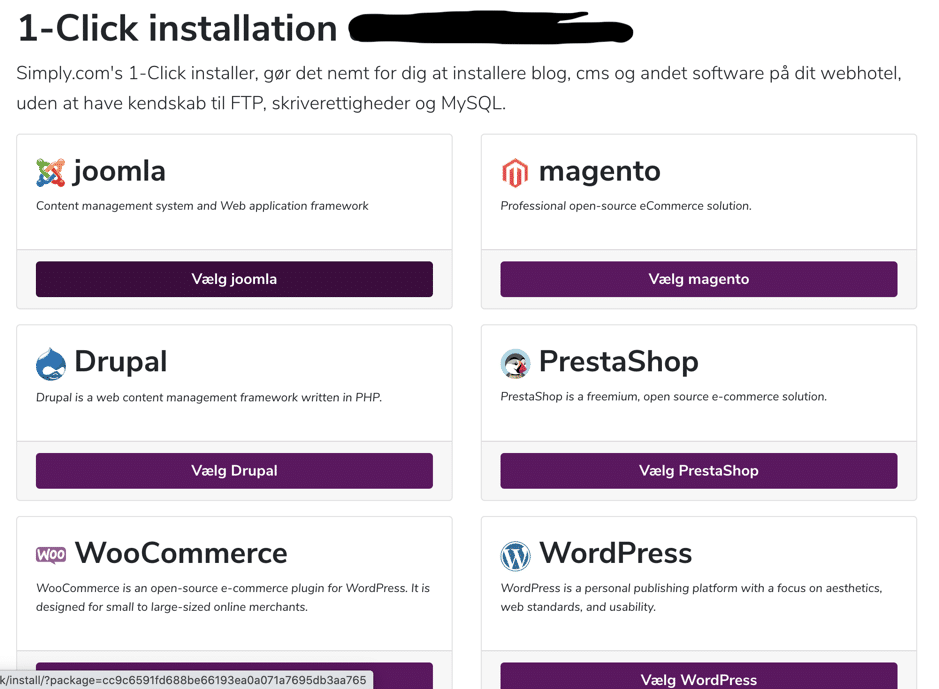
When you click “Choose WordPress,” you’ll be taken to the following screen.
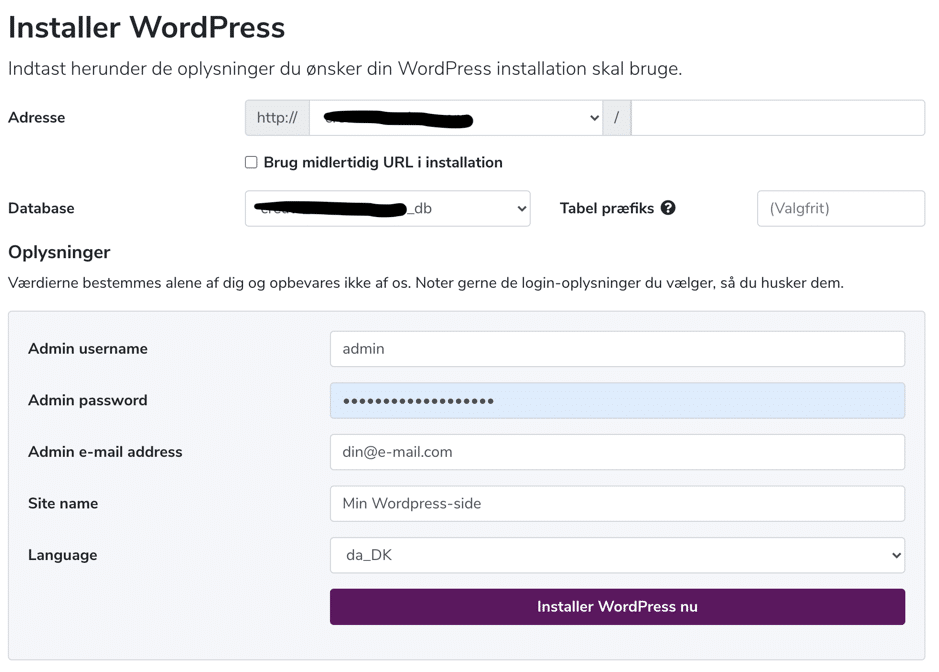
Next, click “Install WordPress now,” and your WordPress website will be set up.
It will look something like this:
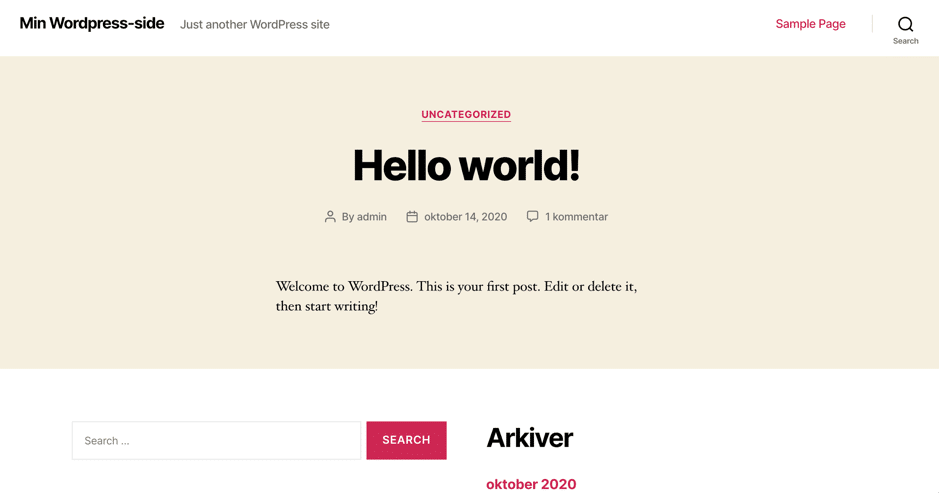
But we’re not quite there yet…
How to find a theme for your WordPress website
Your WordPress website is now set up – almost. It’s not quite as beautiful as you imagined, so let’s find a theme.
I recommend visiting Themeforest.net. Here you’ll find countless themes – some paid, some free.
A good tip is to choose a theme that includes a variety of demos. One example is Bridge, which can be used for many different purposes.
Once you’ve chosen your theme, download it to your computer and upload it to your WordPress site.
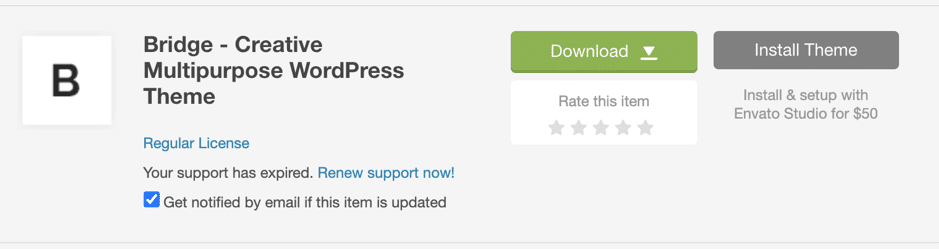
First, download the theme file – then upload it via the backend of your website. It will typically be located at domain.com/wp-admin, where you log in with your chosen username and password.
After logging in, go to “Themes” and then “Add new.”
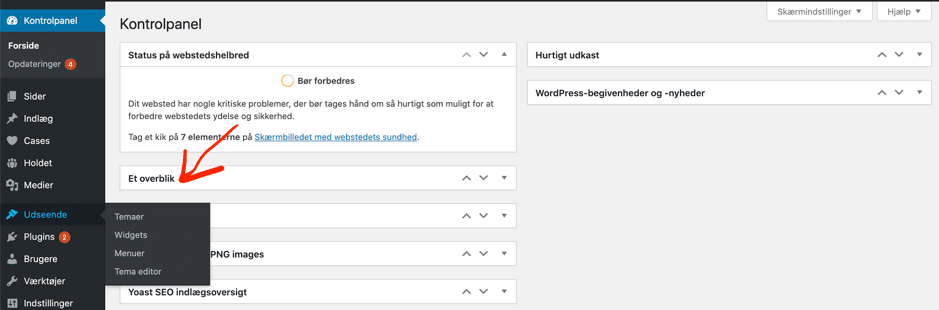
Select your zip file and upload it. Your website now has a theme installed. All that’s left is customizing it to your liking.
Good luck!







Comments